
01
Match a bank statement
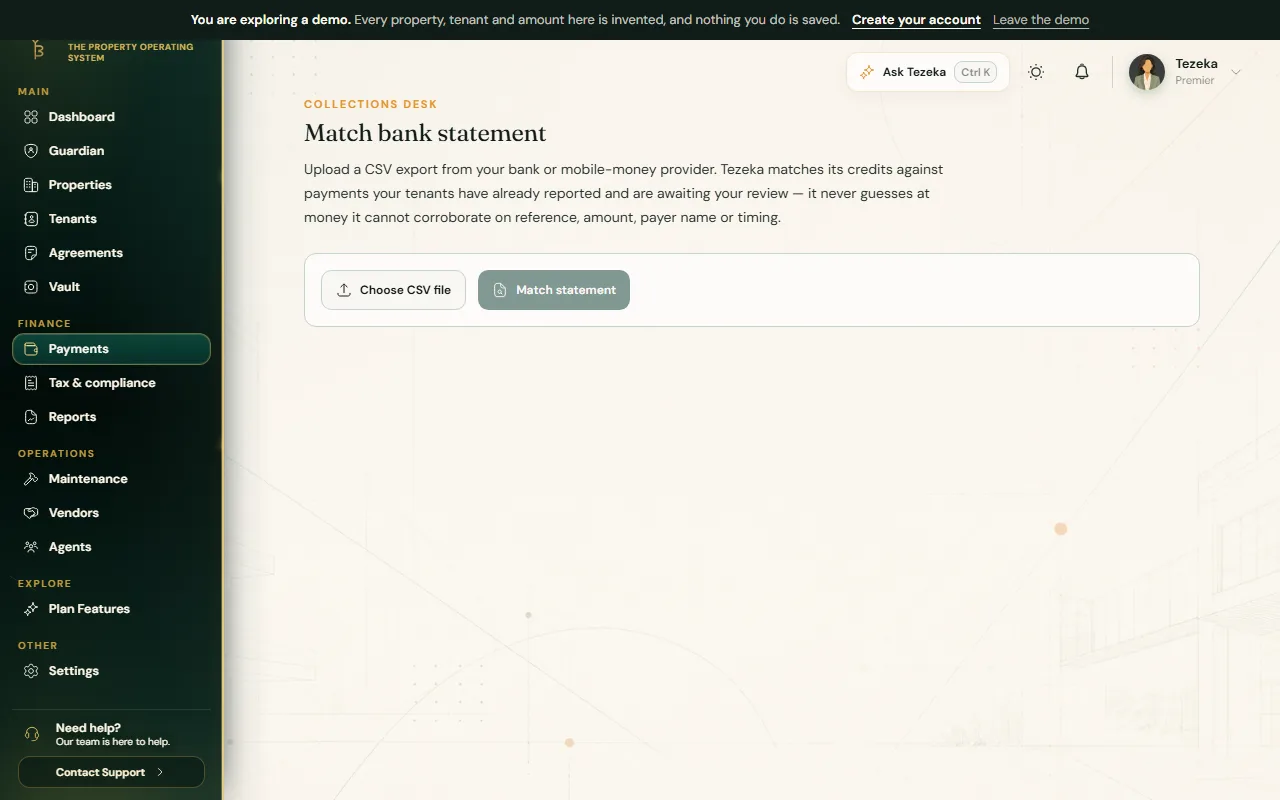
- From Payments, choose Match bank statement.
- Upload the statement as a CSV. If Tezeka cannot tell which column is which, confirm the date, amount and reference columns yourself.
- Tezeka lines up each credit against payments waiting for review and shows its confidence in the match, with the reasons.
- Check the high-confidence matches and confirm them. Anything it could not place stays listed as unmatched, for you to handle by hand.
02
Confirm a batch at once
When several payments this rent week are all high-confidence exact matches, Payments offers a bulk confirmation queue instead of confirming them one by one. It only ever includes the confident ones; anything uncertain stays in the ordinary queue for you to look at individually.
03
Bring in old payment history
- From Payments, choose Import history.
- Download the CSV template first, so your columns match what Tezeka expects.
- Upload the filled-in file. Tezeka checks each row against your own tenants, skips anything that looks like a duplicate, and lists any row it could not import with the reason.
NoteImported rows are treated as confirmed history. Only bring in payments you are sure actually happened; this is not the place to record today's rent.
If something goes wrong
A statement transaction did not match anyone.
Check the tenant's usual sender name and reference. You can still record it by hand from Payments, or log it as an unidentified payment if you are not yet sure whose it is.
The import found duplicate rows.
Tezeka skips rows that look like a payment already on record, rather than creating a second one. Check the skipped count in the import result.
Still stuck? Contact support.