
01
Recorded, then confirmed
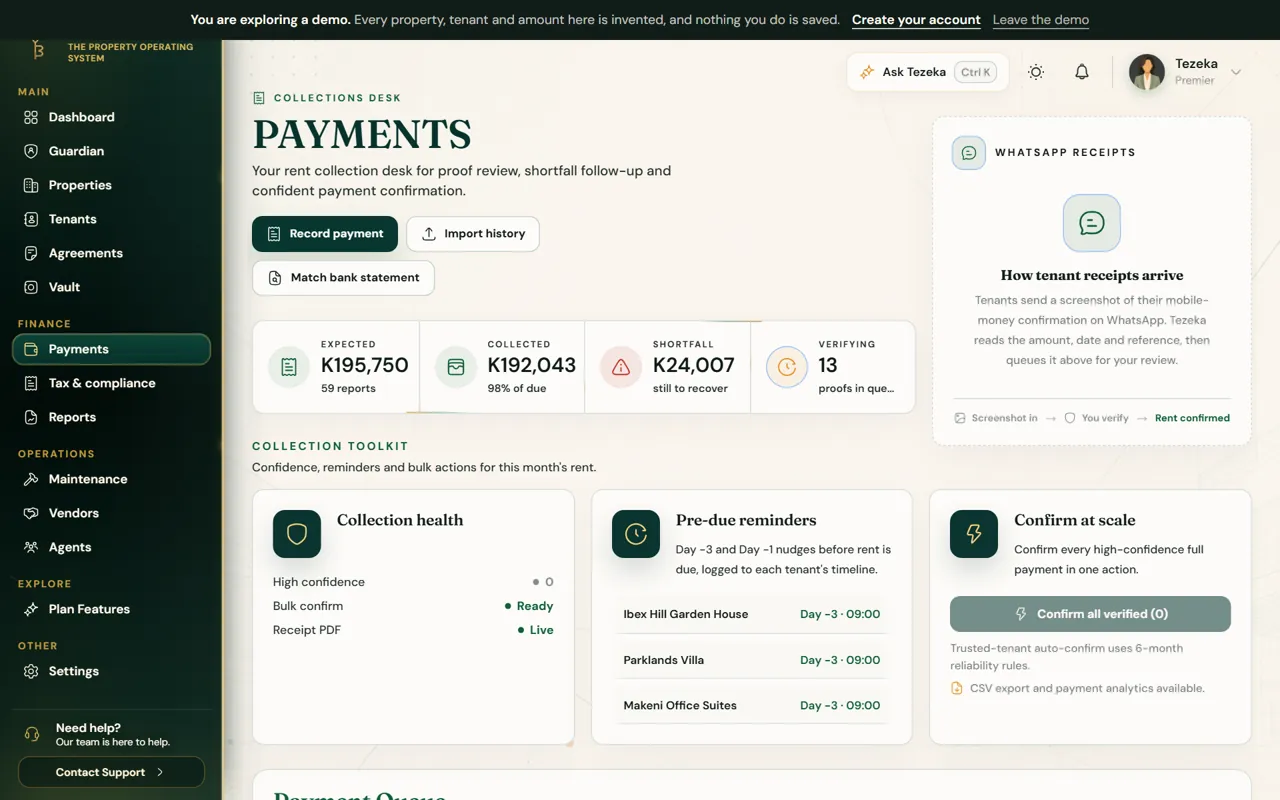
A payment arrives in two steps. First it is recorded: the tenant sends proof on WhatsApp, or you enter it yourself. Then you confirm it after checking the money reached you.
Only confirmed payments count. Balances, statements, arrears and tax figures all follow your confirmation.
02
Record a payment yourself
For cash, a bank deposit, or a tenant who will never send a screenshot.
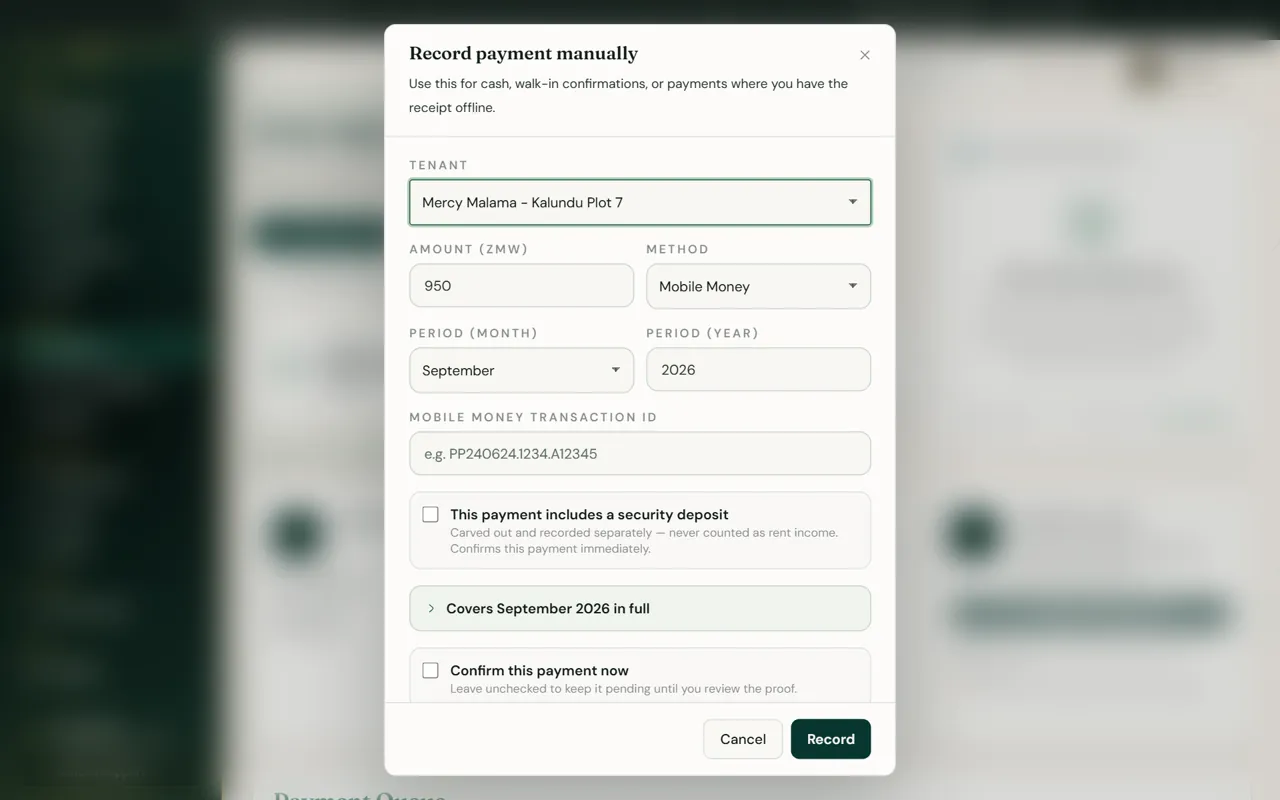
- Open Payments and choose Record payment.
- Pick the tenant, enter the amount and method, and add the transaction ID if there is one.
- Read the line under the form. It says where the money will go before you save, for example Covers September 2026 in full.
- Tick Confirm this payment now if you have already checked it arrived, then Record.
03
Where a payment goes
Tezeka decides this, not the form, so every payment follows the same rule: the oldest unpaid month first, then the month you chose, then months ahead.
Anything left over becomes credit for the months after. A tenant who pays three months at once is shown as paid for three months, and one who clears old arrears has the oldest months cleared first.
04
When the tenant sends proof
- The tenant sends a screenshot or reference to your Tezeka WhatsApp number.
- Tezeka reads the amount and reference and puts it in Payments waiting for you. If it cannot read it, it asks you rather than guessing.
- Check it against your statement and confirm it. The tenant gets their receipt.
05
Money that arrives with no tenant attached
A bank credit or mobile money deposit that does not carry a name or reference Tezeka can match still needs to be kept somewhere, not lost.
- In Payments, choose Log unidentified payment and enter the amount, method and anything on the statement: a reference, a sender name or a phone number.
- It sits in the Payment Queue, marked Unidentified, like any other row waiting on you.
- Once you work out whose rent it is, choose Match to tenant; it then goes through the same confirm step as any other payment.
- If it never turns out to be rent, or you cannot place it, choose Not a payment with a note instead of leaving it open indefinitely.
NoteThis is different from a payment that is merely unconfirmed. Recorded payments already name a tenant; an unidentified payment does not, until you claim it.
06
Fixing a payment applied the wrong way
A confirmed payment does not have to be deleted and re-entered to fix it. On the payment's row, open its reallocation controls to move the amount across rent, a charge or the deposit, or to a different month, without losing the audit trail.
To undo a payment entirely, such as one that turns out to have bounced, use its reversal controls and give a reason. The reversal is recorded, not silently erased.
If something goes wrong
A tenant paid but still shows as owing.
Check the payment is confirmed, not only recorded. If it went to the wrong month, use the payment's reallocation controls rather than deleting it.
Payments add up but the totals look wrong.
Look for payments still waiting for review in Payments, and for unidentified money sitting unclaimed in the queue. Neither counts until it is confirmed or claimed.
Still stuck? Contact support.