
Before you start
- The agent's name and email
- Which properties they should be able to see and work in
01
Invite an agent
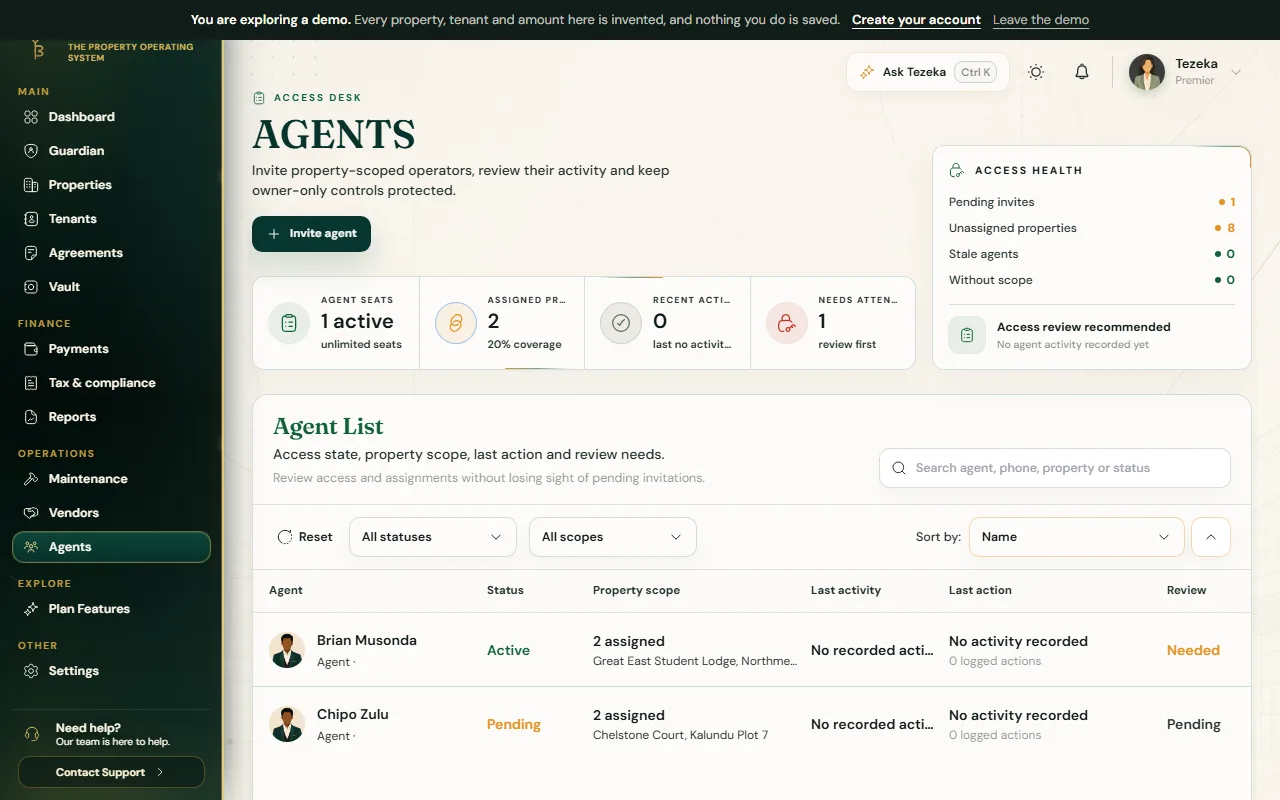
- Open Agents and choose Invite agent.
- Enter their name and email, then tick the properties they should be assigned to. They see nothing outside that list: not your other properties, not billing, not your plan, not the portfolio view.
- Send the invite link. Once they accept, their access follows exactly the properties you assigned, and you can add or remove properties at any time.
02
What an agent can do directly
An agent can log maintenance, confirm MoMo and bank payments, and work day to day on their assigned properties. Anything that changes what you own, a rent amount, a property record, a tenant move, an agreement, becomes a request for you rather than a change they make themselves. An agent can never approve their own request.
03
Decide a request
- Requests waiting on you appear as an approval panel on Properties, Tenants or Agreements, wherever the request touches.
- Open it, read what the agent is asking for, and add a note if you want to explain your decision.
- Choose Approve to apply it, or Decline to refuse it. Either way the decision is timestamped against your account, so delegation never costs you the record of what happened.
04
Your whole team in one table
Settings then Team & Agents lists every agent alongside their contact details, status, last activity and assigned properties, with an Open link into each one. The same page spells out exactly what an agent can and cannot do: they can log maintenance, confirm payments, request rent changes and complete move-in or move-out checklists; they cannot see your financial or ZRA reports, your bank details, your TPIN, or reach a property you have not assigned them.
On Premier and above, a Staff audit log on the same page lists every action an agent took, by whom, on which property, filterable by staff member, property and date.
If something goes wrong
An agent says they cannot see a property.
Open Agents and check the property is ticked under their assignment. Only assigned properties are visible to them.
I need more than my plan's agent seats.
Pro carries 3 agent accounts and Premier and Custom are unlimited. Open Upgrade Plan to move up.
Still stuck? Contact support.