
Before you start
- The address as it should appear on a lease
- How many lettable units it has
- Photos of the condition today, if you have them
01
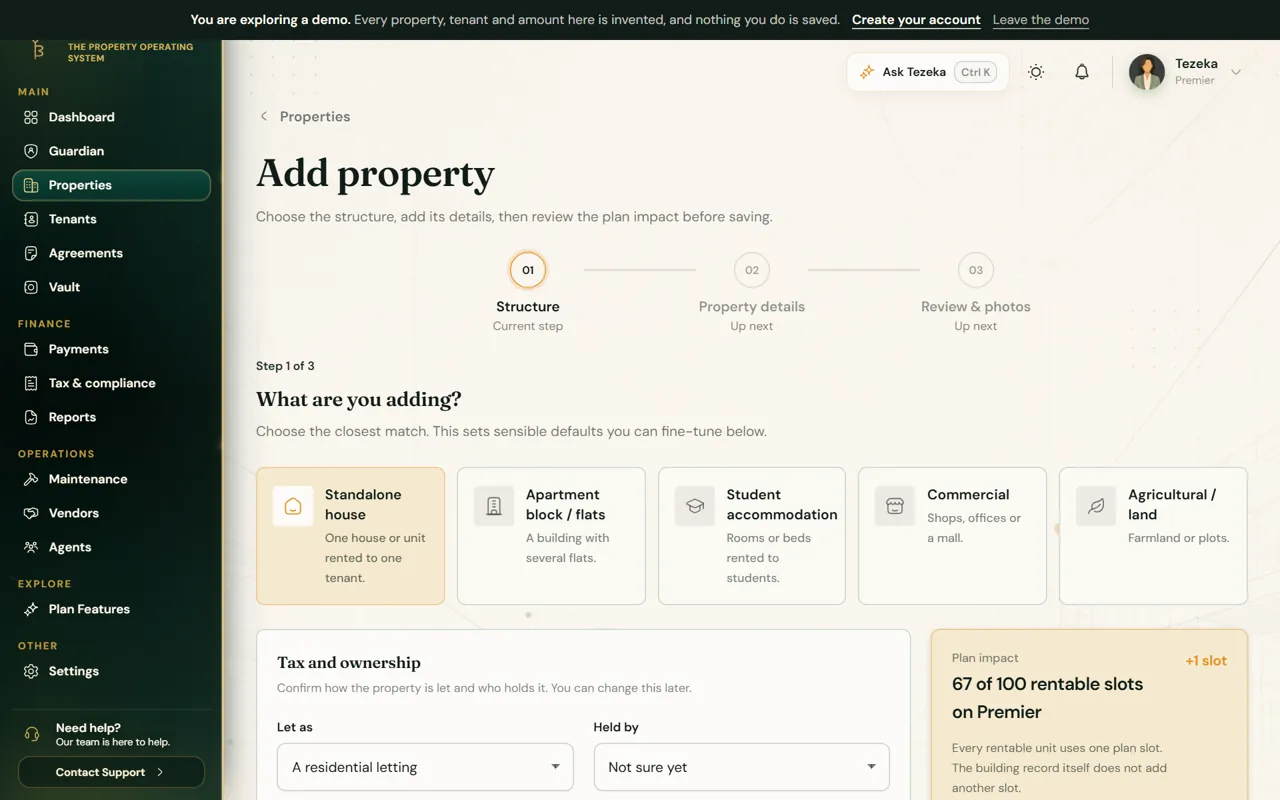
Choose the structure
The structure decides whether the property holds one tenancy or many, and which defaults Tezeka sets for you.
- Open Properties in the sidebar and choose Add property.
- On Structure, pick the closest match: a standalone house, an apartment block or flats, student accommodation, commercial space, or agricultural land.
- Under Tax and ownership, say how it is let and who holds it. You can change this later, and it is what sorts the property into residential or business rent on the tax page.
02
Enter the details
- On Property details, use the name you would say out loud, the one a caretaker or agent would recognise.
- Type the street address in full. Tezeka places the map pin from the street address, not from the name, so a named property still lands in the right place.
- If the pin is off, drag it. Once you place it by hand, Tezeka leaves it where you put it.
03
Review and save
- On Review & photos, add photos of the condition before anyone moves in.
- Read the plan impact panel: it shows how many of your plan's units the property uses before you save.
- Save. The property now appears under Properties, ready for tenants.
NoteTake the move-in photos now. They are the reference for every deposit deduction and repair question later, and they cannot be taken after someone has moved in.
If something goes wrong
The map pin is in the wrong place.
Check the street address is complete, including the area and town. The pin follows the address. You can also drag it; a pin you place yourself is kept.
Tezeka says I have reached my plan's limit.
Your plan counts units, not buildings. Open Plan Features to see what is in use, or upgrade from Upgrade Plan.
Still stuck? Contact support.